5 步使用远程 USB 设备
1
安装 Linux USB 服务器
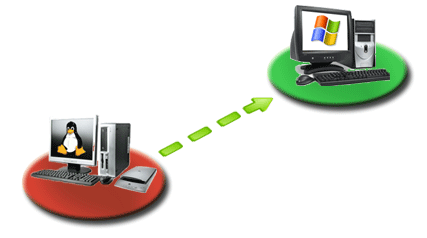
在 USB 设备物理连接的 Linux 电脑上安装 USB Redirector for Linux。该电脑将充当 Linux USB 服务器。您可能需要设置防火墙规则以允许 TCP 端口 32032(默认值)的入站/出站连接。
2
在 Linux USB 服务器上共享 USB 设备
首先获取连接到电脑的 USB 设备信息,在命令行中执行以下命令:
usbsrv -l
如果成功,该命令将显示 USB 设备列表:
user@cyber:~$ usbsrv -l
=================== LIST OF LOCAL USB DEVICES ===================
1: Flash Disk - USB Mass Storage Device
Vid: 0ea0 Pid: 2168 Port: 1-4
Status: plugged
16: USB-Serial Controller
Vid: 067b Pid: 2303 Port: 3-1
Status: plugged, in exclusion list
===================== ======================= ===================
user@cyber:~$
如您所见,电脑上连接了两个 USB 设备:
- 1: Flash Disk - USB Mass Storage Device
- 16: USB-Serial Controller
要共享 "Flash Disk - USB Mass Storage Device",需要执行:
usbsrv -share 1
如果成功,命令将显示以下信息:
user@cyber:~$ usbsrv -share 1
====================== OPERATION SUCCESSFUL =====================
USB device has been shared
===================== ======================= ===================
user@cyber:~$
3
安装 Windows USB 客户端
在需要远程使用 USB 设备的 Windows 电脑上安装 USB Redirector。该电脑将充当 Windows USB 客户端。
4
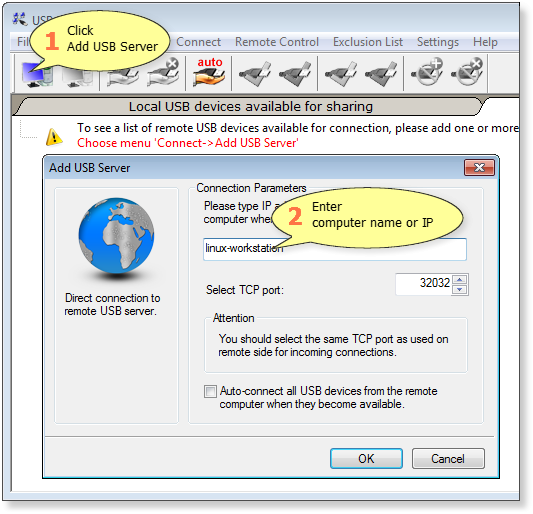
创建到 Linux USB 服务器的连接
从 Windows USB 客户端创建到 Linux USB 服务器的连接:
5
连接 USB 设备
在可用的 USB 设备列表中选择所需的设备,然后点击 Connect(连接):
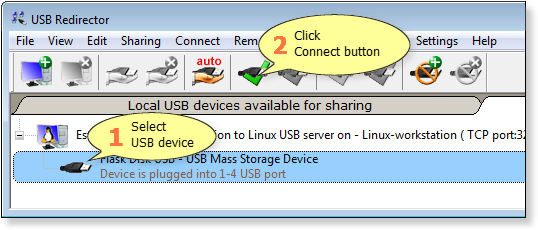
完成!现在您可以在 Windows 电脑上使用该设备,就像它直接连接在本地一样: